

Workflow automation tools connect a trigger, such as a new record or submitted form, to actions such as updating data, assigning a task, or requesting approval. This guide compares five options by their role in your business: NocoBase, Appy Pie Automate, Zapier, Make, and n8n.
Start with where the work happens. Connecting existing apps calls for different software than building a business system with its own records, permissions, and approval rules. The comparison below helps you shortlist tools, then test one real workflow before committing.
Workflow Automation Tools at a Glance
These are starting points for evaluation, not a scored ranking or a hands-on benchmark.
| Tool | When to evaluate it | What to check before choosing |
|---|---|---|
| NocoBase | Building and continuously improving a business system with shared data, permissions, and workflows | Required capabilities, deployment ownership, and how changes will be tested and approved |
| Appy Pie Automate | Connecting applications through guided automation setup | The current product offering, supported triggers and actions, and migration needs; its website now redirects to Flozic |
| Zapier | Automating handoffs between existing applications with Zaps | Coverage of your exact app actions and usage at your expected volume |
| Make | Designing visual workflows that transform data and branch across applications | Data mapping, error handling, and the cost of running each scenario |
| n8n | Building workflows with a self-hosting option | Hosting and maintenance responsibilities, required integrations, and license terms |
Product capabilities and commercial terms change. Check the exact actions and limits you need with each vendor. The sections below link to official sources and retain practical examples from this guide.
What is Workflow Automation?
Workflow automation uses defined rules to execute tasks in a business process. A trigger starts the workflow, conditions determine which path it follows, and actions update records or move work to the next person or system.
For example, an expense request can route to a manager, wait for approval, and then notify finance. Automating the routing still leaves the approval decision with the responsible person.
💬 You’re reading the NocoBase blog. NocoBase is an open-source platform for enterprises to use AI to build and continuously improve business systems. Agents write the business-specific parts, NocoBase provides the foundation and workflow, and people set goals and make decisions. It supports private deployment, so the enterprise controls its code, data, and runtime environment. → Explore NocoBase on GitHub
Why Automate Workflows?
- Increase Productivity Workflow automation frees employees from tedious manual tasks, allowing them to focus on more creative work, thereby enhancing overall efficiency and output.
- Reduce Costs By minimizing reliance on manual operations, automated workflows help lower labor costs, especially when handling large volumes of repetitive tasks.
- Real-Time Monitoring and Feedback Automated systems provide real-time process monitoring, enabling management to stay informed about business process performance and make data-driven decisions based on collected data.
💡 Read More: ⭐️ Top 10 Open-source Workflows Projects with the Most GitHub Stars
Applications of Workflow Automation
Every industry has unique workflows and challenges, making workflow automation widely applicable across sectors.
- Finance: Automation often focuses on simplifying approval processes like invoice handling, expense reimbursements, and account reconciliations. Automated tools can fill in data fields automatically, reducing manual entry errors. Approval and compliance requirements still need explicit rules and review.
- Human Resources Management: Workflow automation involves automating hiring, onboarding, and offboarding processes. It can automatically create new employee profiles, send welcome emails, and track onboarding tasks.
- IT and Customer Support: Workflow automation can manage asset management, change management, and service desks, automating the entire process from issue identification to resolution. For customer support teams, automation helps quickly identify and respond to customer issues, improving service efficiency.
- Sales and Marketing: Sales teams may use workflow automation to handle lead routing, quote approvals, and sales funnel management. Marketing teams may utilize automation tools to manage email campaigns, social media posts, and customer relationship management.
- Manufacturing and Supply Chain Management: Workflow automation can be used for automatic scheduling of production plans, automatic assignment of production tasks, and real-time monitoring of production data to enhance efficiency and product quality.
- Software Development: Workflow automation can enable automatic compilation, testing, and deployment of code, improving development efficiency and quality. Integration with other systems allows for features like requirement management, defect tracking, and version control. By integrating key automation testing concepts, teams can detect and address issues earlier in the development cycle, leading to faster release times and more reliable software.
Steps to Implement Workflow Automation
- Assess Current Workflows: Before automating, conduct a thorough evaluation of existing workflows to identify which processes can be automated and the potential benefits of automation.
- Define Goals and Expectations: Clarify the objectives of automation, including expected cost savings, efficiency improvements, and error reductions.
- Choose Appropriate Automation Tools: With numerous automation tools available, selecting the right tool is crucial for successful implementation.
- Design Automation Processes: Create flowcharts for automation processes, detailing the automation logic and rules for each step.
- Implement Automation: Once the design is complete, begin implementing the automation processes, which may include software development, system integration, and testing.
- Train Employees: After automation implementation, train employees to ensure they can effectively use the new automated system.
- Monitor and Optimize: After implementation, continuously monitor performance and optimize based on feedback.
The application of workflow automation varies by industry, making it crucial to choose the right tools when advancing automated workflows.
How to Choose Workflow Automation Software
Use one real process to compare tools. Write down its trigger, data, conditions, actions, and the person responsible for exceptions.
- Data and integrations: Check whether the tool supports the exact trigger and action you need. An app appearing in an integration directory does not guarantee access to every field or operation.
- Permissions and approvals: Identify who may read or change each record, which actions require approval, and where decisions are recorded.
- Deployment and maintenance: Decide who will operate the system, update it, back it up, and restore it after a failure. Self-hosting gives your team control and operational responsibilities.
- Failures and retries: Test missing fields, expired connections, rejected approvals, and repeated events. A retry should not create a second invoice or send the same customer message twice.
- Cost at your volume: Estimate runs, steps, users, paid capabilities, and hosting. Compare the total cost of the workflow you expect to run, including maintenance.
- Future changes: Ask how a colleague will understand and safely change the workflow six months later. Keep its rules, tests, and owner documented.
For more on connecting business systems, read Deep Dive: Low Code/No Code Integration Capabilities. If managing your own environment is a priority, see the self-hosted solutions guide.
Five Workflow Automation Tools Compared
NocoBase
NocoBase is an open-source platform for building and continuously improving business systems with AI. Evaluate it when workflow automation needs to live alongside your business data, permissions, and approval rules.
- A reusable foundation: NocoBase Core provides data, permissions, workflows, approvals, and operation records. Teams can focus changes on the business-specific parts of the system.
- Controlled changes: NocoBase Studio supports collaboration with your chosen development agents. Development and testing lead to checks, human acceptance and approval, and backup before release.
- Enterprise ownership: Open source and private deployment give the enterprise control of its code, data, and runtime environment. Plan who will manage deployment, upgrades, and recovery.
Start by confirming which capabilities your workflow needs and which edition provides them. Complex approvals and other commercial enhancements should be checked against the current offering.
🙌 Have a try: NocoBase Tutorial – Task Management System
Example: Update a Record with NocoBase
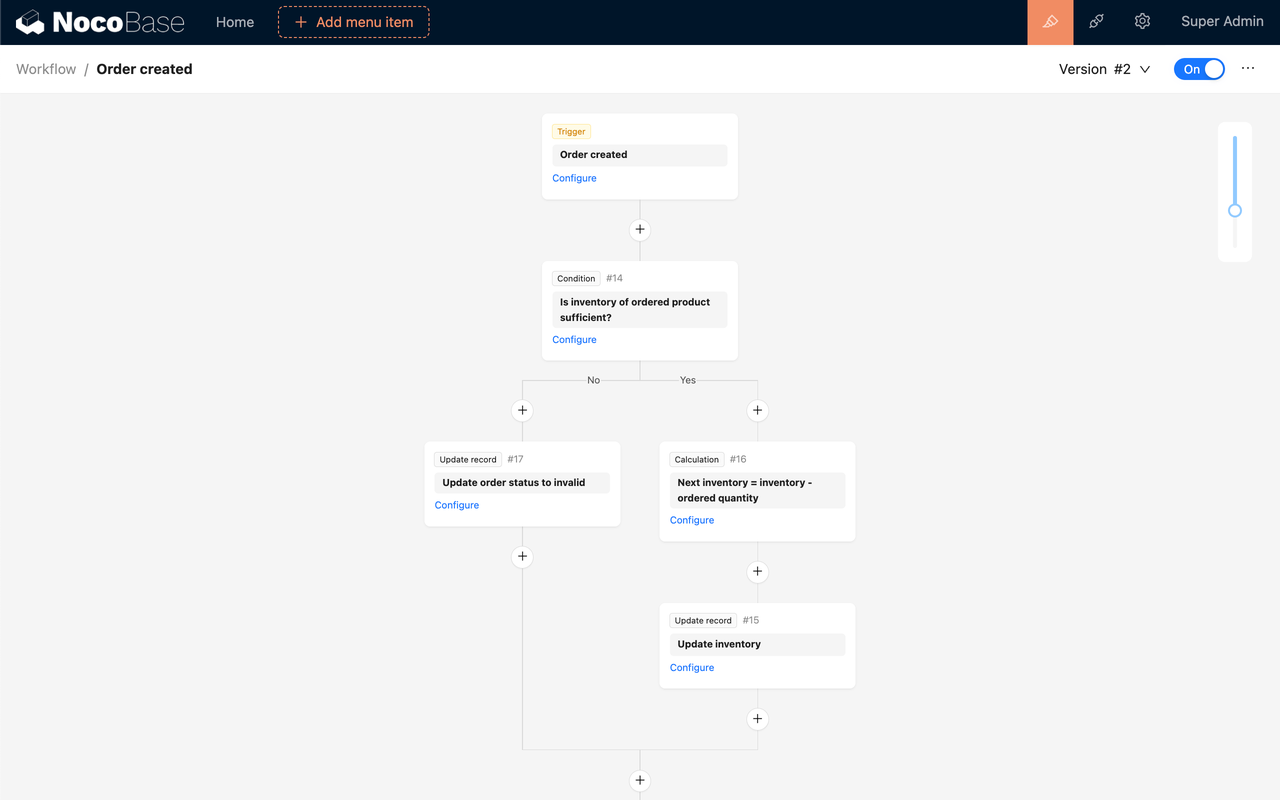
This existing tutorial illustrates a trigger, calculation, and update. Screenshots and menu labels may differ by version; check them against your installed version before following the steps.
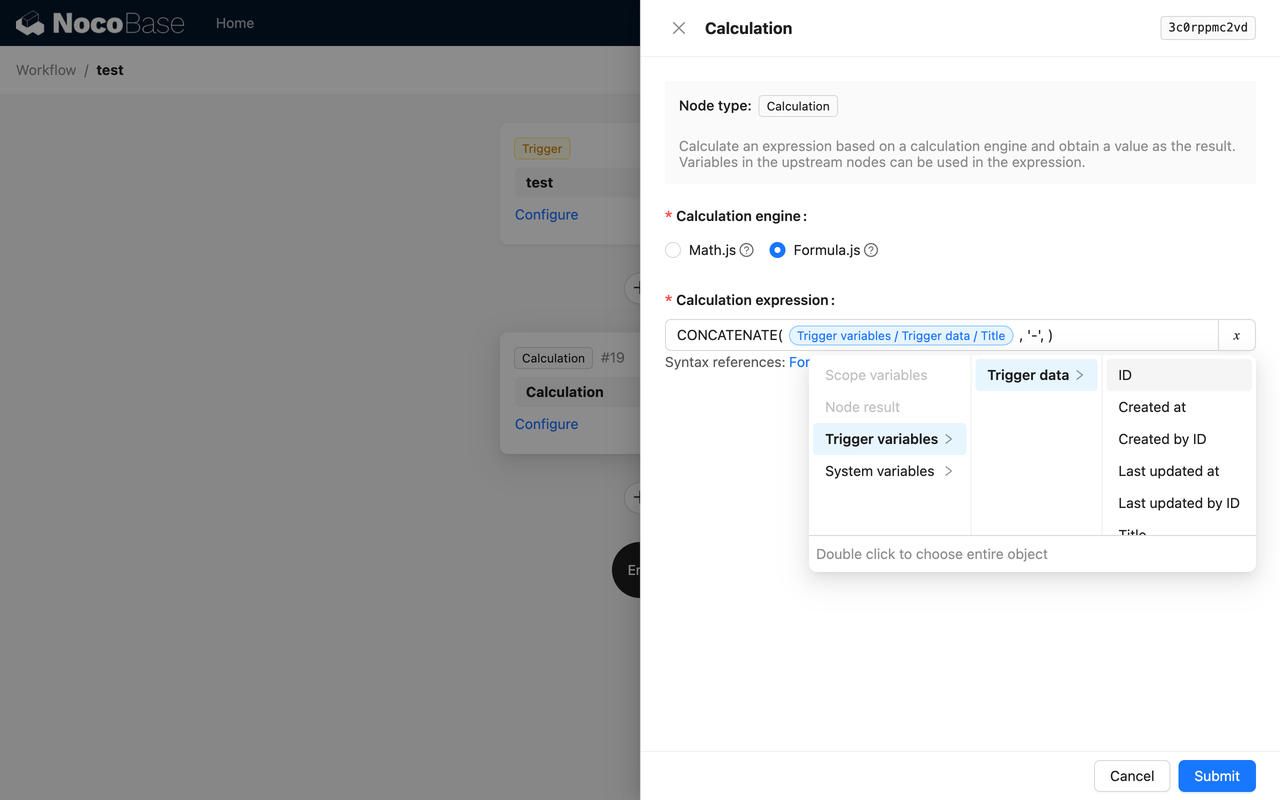
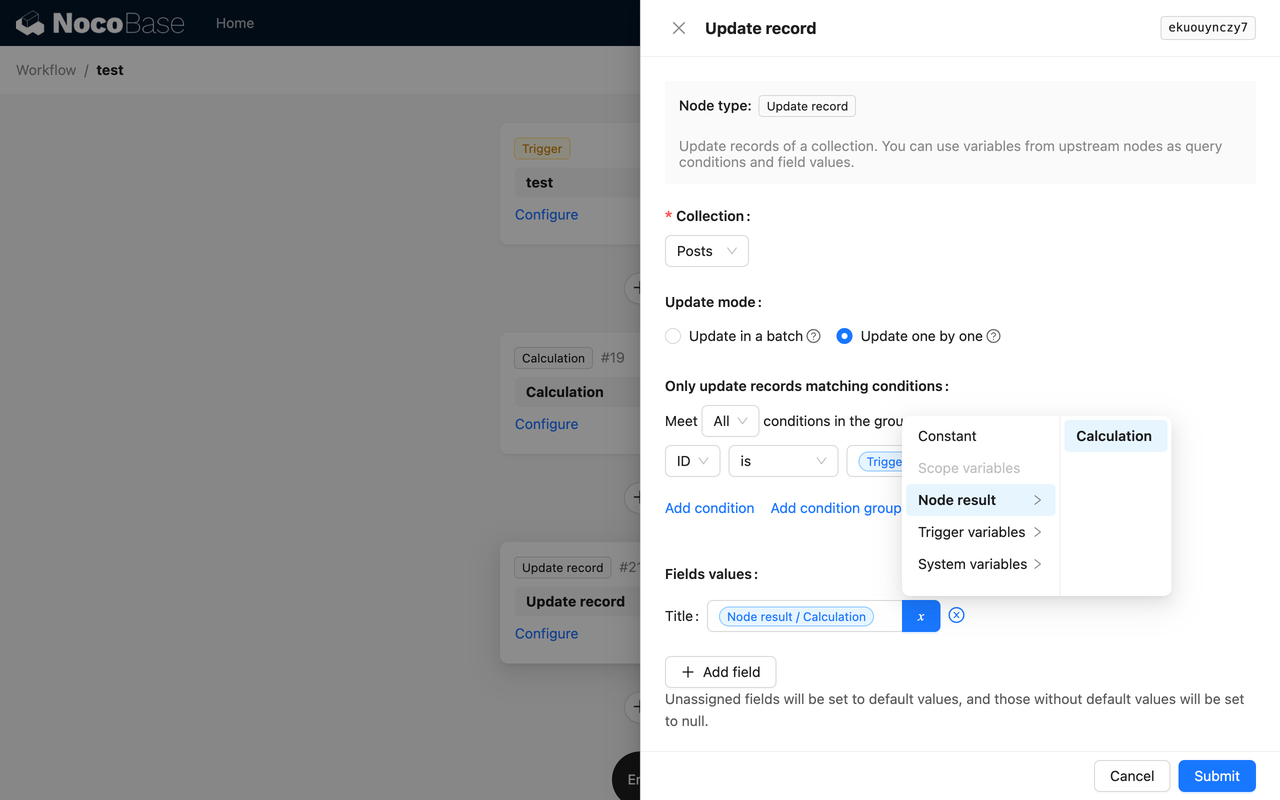
Here’s the workflow: when a new article is created, the system will automatically execute a concatenation calculation, combining the title field with the ID field, thus automatically updating the article title to the format “Article Title + Article ID.”
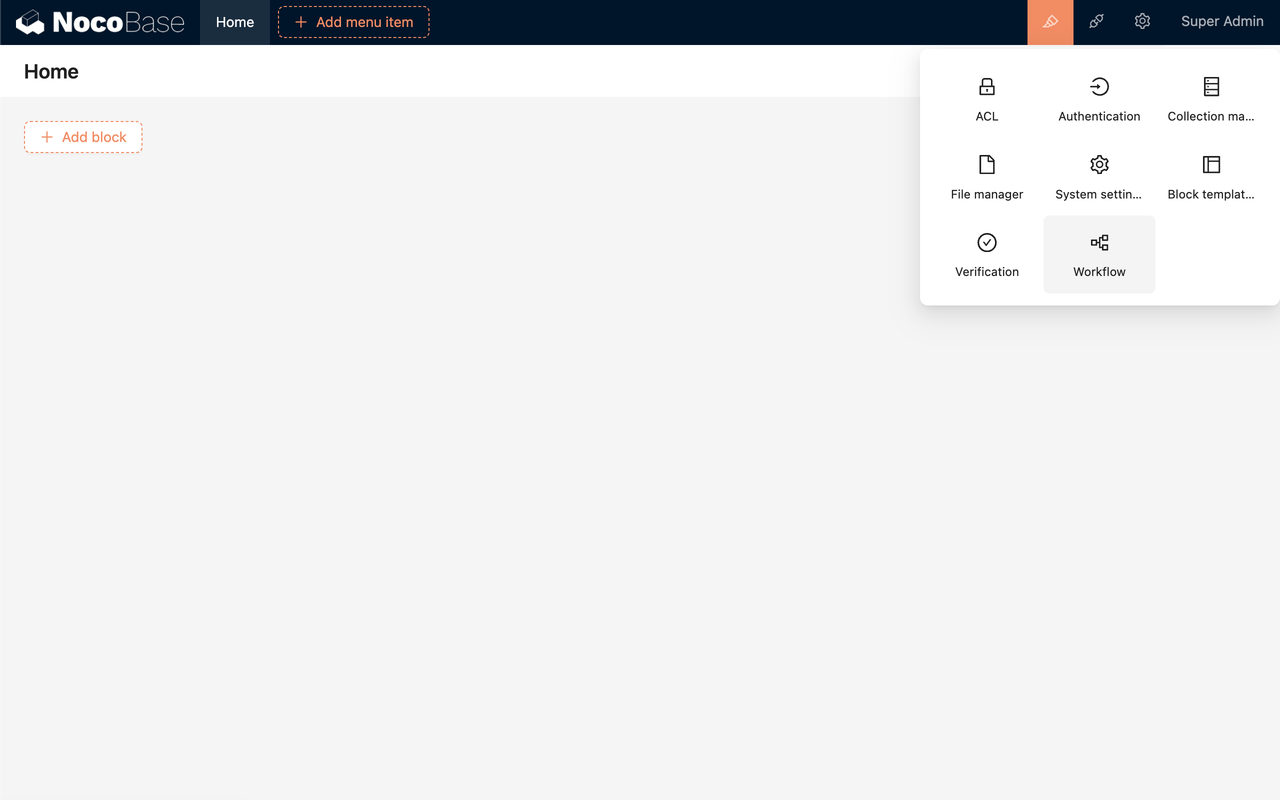
- Access the Management Page: Go to the management page of the Workflow plugin by accessing the plugin configuration menu in the top navigation bar.
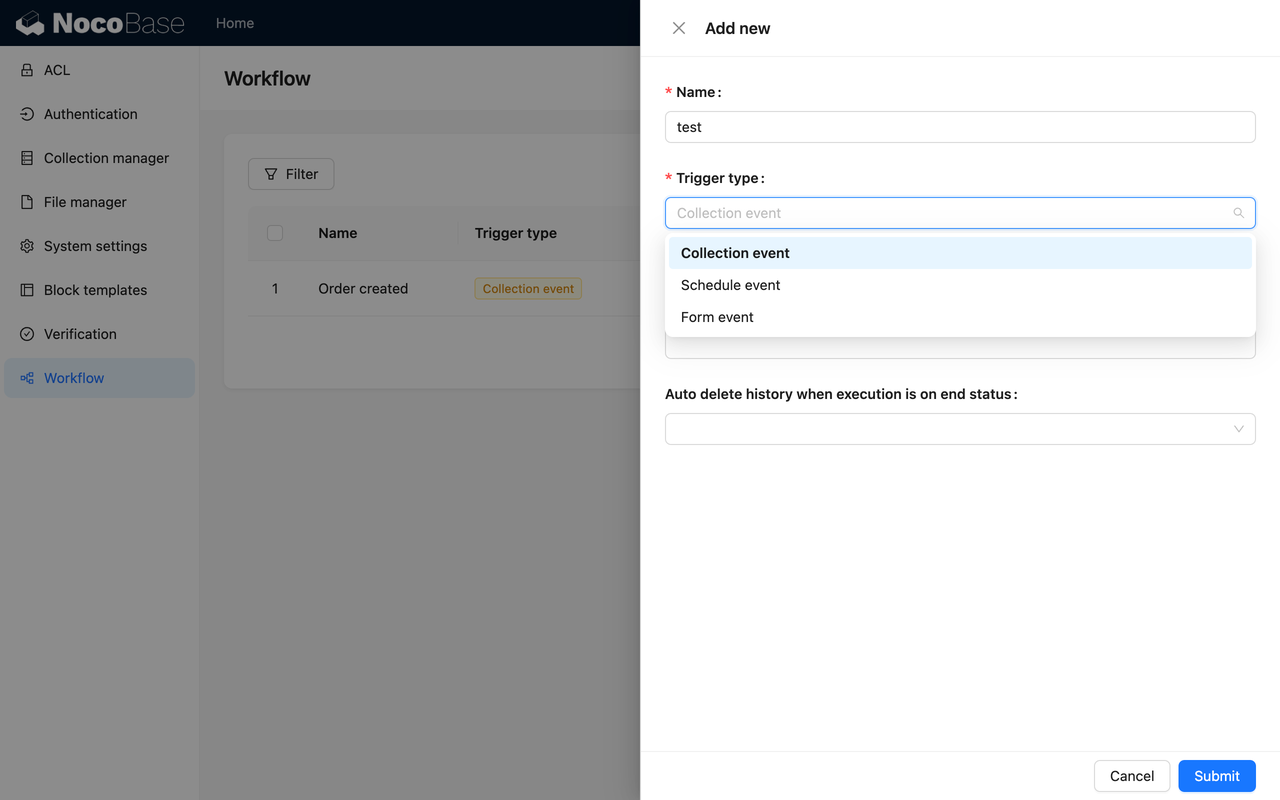
- Create a New Workflow: Click the “Add new” button to create a new workflow and select a collection event.
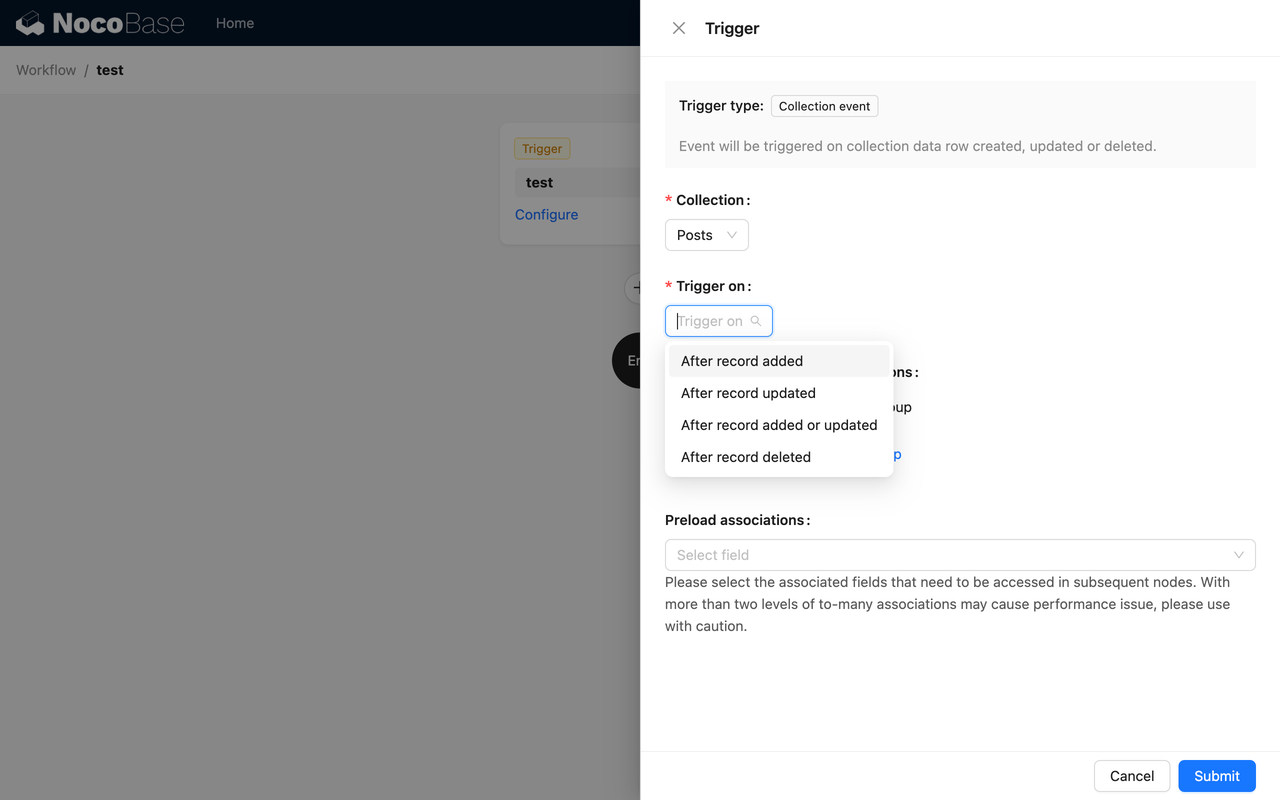
- Configure the Trigger: Click the “Configure” link, select the trigger card, select a previously created collection (e.g., “Posts”) and choose the trigger condition “After record added”, click the “Save” button to complete the trigger configuration.
- Add a Node: Click the plus button to add a node and select a calculation node. Configure the node using the
CONCATENATEfunction provided by Formula.js to concatenate the “Title” and “ID” fields.
- Create an Update Node: Add an “Update record” node and select the “Posts” collection. Limit the update to the record that triggered the workflow. Configure the update data item as “Title,” with the update value being the result of the calculation node.
- Enable the Workflow: Click the “On/Off” switch in the top-right toolbar to switch the workflow to the enabled state, allowing it to be triggered.
Appy Pie Automate
This guide originally covered Appy Pie’s app automation service. As of October 22, 2026, the Appy Pie Automate website redirects to Flozic, which presents app integrations and AI agents. Review the current offering before using older Appy Pie tutorials or choosing a plan.
The original trigger-and-action example remains a useful way to define your requirements:
- Choose the trigger: Identify the application and event that start the workflow, such as a new form submission.
- Choose the action: Specify the destination application and the fields to create or update.
- Test before activation: Use sample data to check the mapping, permissions, and result. Confirm where failed runs can be reviewed.
If you already use Appy Pie Automate, verify how your connections and workflows are supported in the current product. This guide does not establish migration compatibility.
Zapier
Zapier is a popular automation platform that allows users to connect different applications and tools to automate workflows.
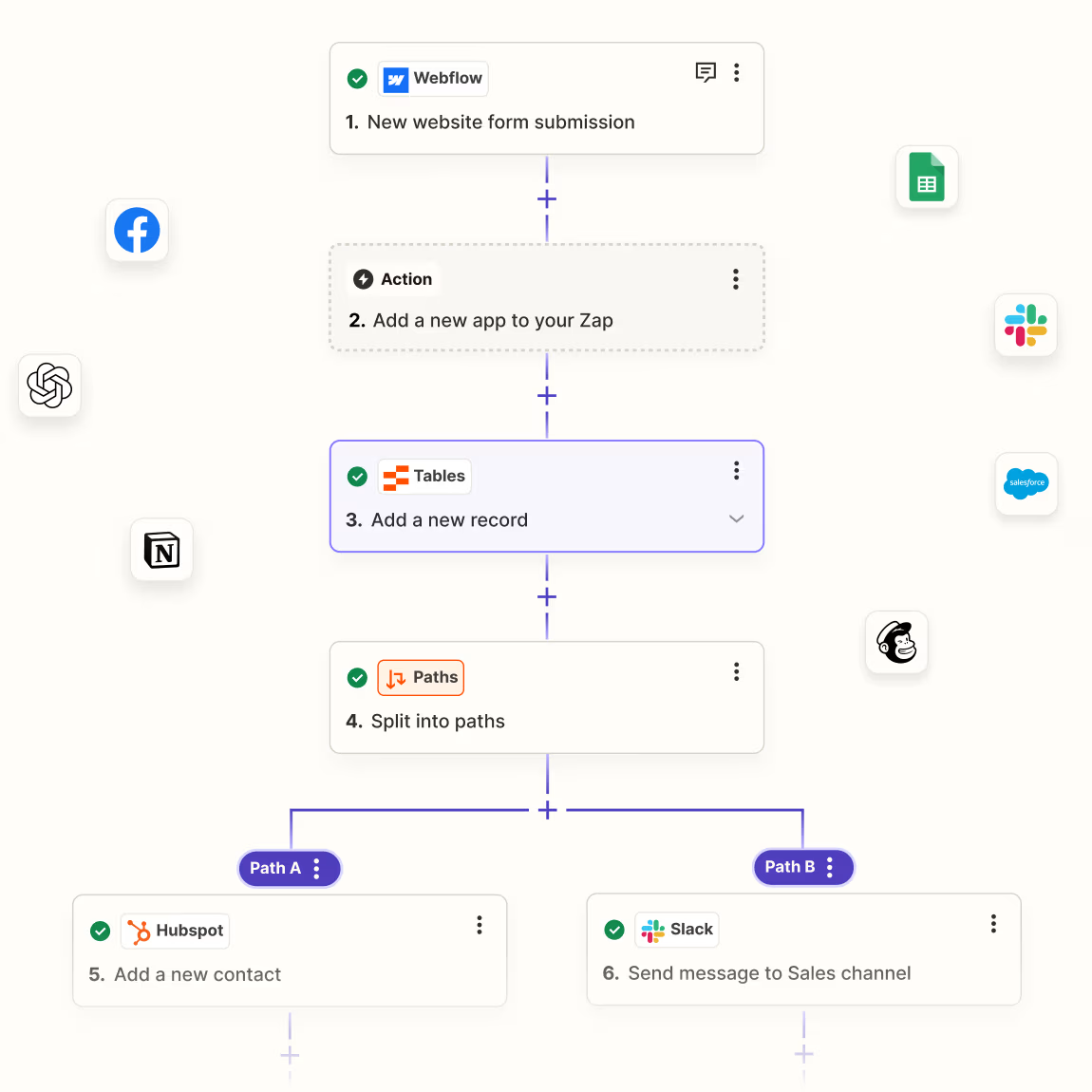
- Powerful Automation Features: Users can easily achieve cross-application automation tasks by setting up “Zaps,” without needing programming knowledge.
- Wide Application Integration: Supports integration with thousands of applications and services, ensuring smooth information flow between different tools and improving work efficiency.
- User-Friendly Interface: An intuitive interface design allows users to quickly create and manage workflows, making it easy for all types of users.
Case Study: How Smart Charge America uses automation to scale operations and fight climate change | Zapier
Make
Make is a powerful workflow automation tool that offers a wide range of features, including data transformation, API calls, and conditional logic.
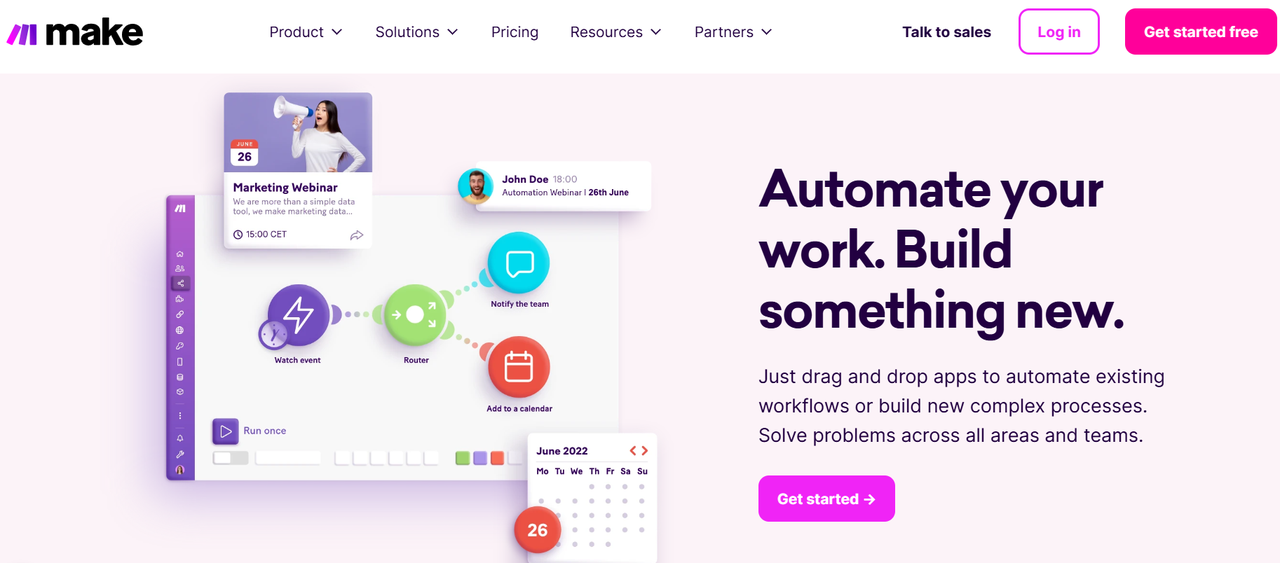
- Visual Workflow Design: Provides an intuitive drag-and-drop interface, allowing users to easily create complex automation processes, lowering the operational difficulty.
- Strong Integration Capabilities: Supports connections with numerous applications and services, allowing seamless data transfer across different platforms, enhancing flexibility.
- Multi-Step Operations and Conditional Logic: Allows users to set up multi-step processes and conditional logic, achieving more complex automation scenarios to meet various business needs.
Case Study: Brevo automates 100+ workflows to supercharge lead gen and gain 16 days a month
n8n
n8n supports workflow automation and offers self-hosting. Its official materials describe its license as fair-code (Sustainable Use License), so it should not be grouped with unrestricted open-source software. See the official license overview and licensing guidance.
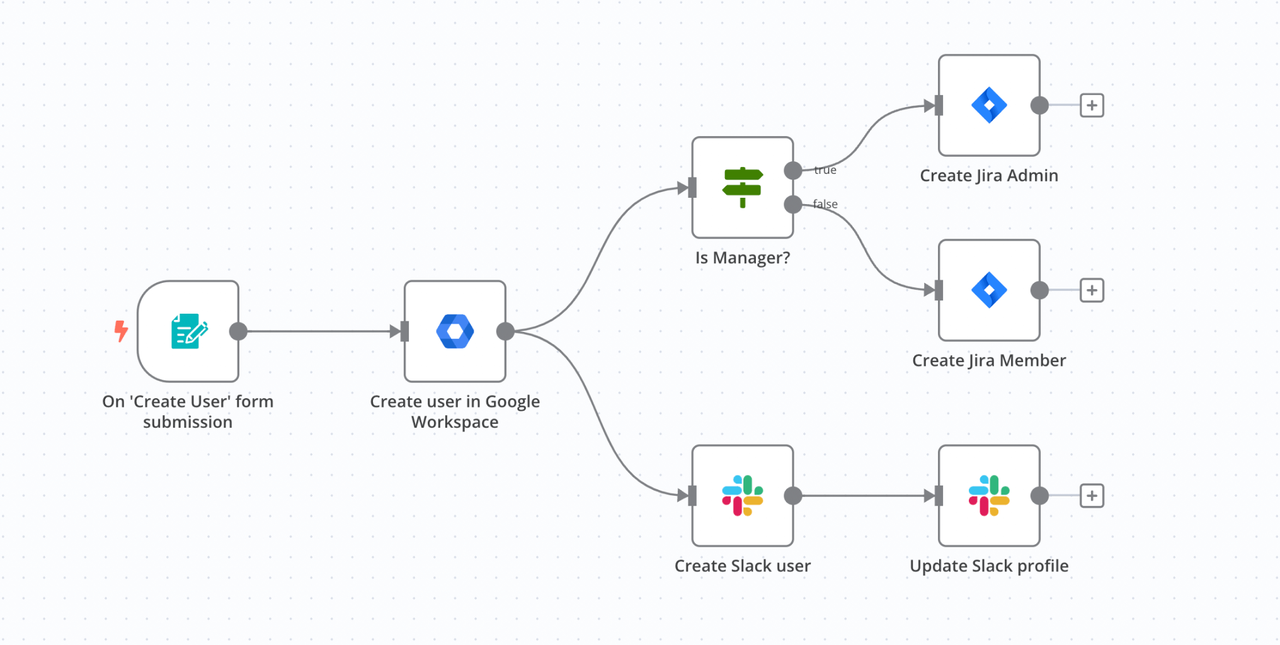
- Self-Hosting: Your team can manage the deployment environment. You also need to manage access, updates, backups, and recovery; hosting alone does not guarantee privacy or security.
- Rich Integration Options: Supports connections with numerous applications and services, helping users create cross-platform automated workflows to improve work efficiency.
- Flexible Conditions and Logic Control: Allows users to set conditional logic and multi-step operations to meet complex business needs and achieve intelligent process management.
Case Study: Delivery Hero saved 200 hours/month with a single IT ops workflow
Example: Test an Expense Approval Workflow
Use this illustrative scenario to evaluate your shortlist. It is a test design, not a claim that every tool includes the same approval features.
- Trigger: An employee submits an expense record with an amount, receipt, and department.
- Validation: If a required field is missing, return the request to the employee without routing it for approval.
- Decision: Send the request to the authorized approver. Only that person’s approval may move it to finance.
- Action: After approval, create the finance task and notify the employee. Rejected requests follow a separate path.
- Recovery: Simulate a failed notification and a repeated submission. Check that retrying does not create duplicate finance tasks.
Measure time to approval, manual corrections, and failed runs during a small pilot. Then change one rule, such as the approval threshold, and verify that the team can test and release the update safely.
Conclusion
Choose workflow automation software around the process you need to operate and maintain. Zapier and Make are starting points for app-to-app automation; n8n adds a self-hosting option with its own license terms. For Appy Pie Automate, review the current Flozic offering before relying on older setup guides.
Evaluate NocoBase when the workflow is part of a business system that needs shared records, permissions, and continued improvement. The first working automation is a starting point. Your team also needs a reliable way to change its rules after it goes live.
🙌 Start with the NocoBase task management tutorial, then map one process from your team onto its records and workflow. Define the owner, approval rules, and acceptance checks before expanding it.
Related reading:
- Complete Guide to Efficient Business Application Development
- Top 6 Core App Dashboard Building Tools
- Deep Dive: Low Code/No Code Integration Capabilities
- Best Open-Source Tools for BPM - NocoBase
- 5 Best Open-Source No-Code Tools for Project Management
- Build CRM in Hours: Top No-Code/Low-Code Tools You Need to Know